Descript review for marketing video editing
Descript review for marketing video editing: run a 45-minute workflow test, see where text-based editing saves time, and find the limits.
This sheet contains partner links. A purchase through one earns Runbook a commission at no additional cost to you. How we make money.
Descript can cut a spoken video as quickly as you can edit a document. That saves a small business from learning a complicated video timeline for every interview, webinar, or product demonstration. In 45 minutes, you'll import one recording, remove mistakes from its written transcript, clean the sound, add captions, and export a test. The verdict: Descript is strong for speech-led marketing video, but a poor fit for detailed animation or precise commercial edits.
If nobody on your team wants to become a full-time video editor, Descript deserves a controlled test. If your videos depend on exact cuts, layered effects, or frame-by-frame timing, skip it and use a traditional editor.
What works
- You make the main cuts by editing written words
- Captions stay connected to the spoken transcript
- Audio cleanup and short-clip creation live in the same project
- A timeline remains available for detailed repairs
What does not
- Transcript cuts can create abrupt audio or visual jumps
- Computer-assisted features consume a separate credit allowance
- Detailed motion graphics are slower than in a traditional editor
- Automatic clips still need a human fact and context check
What you'll build
You'll turn a three-to-five-minute talking-head recording into one finished horizontal video and one vertical excerpt. Use a real recording with at least one mistake, a pause, and background noise. That gives the editor enough work to expose whether it will save your team time.
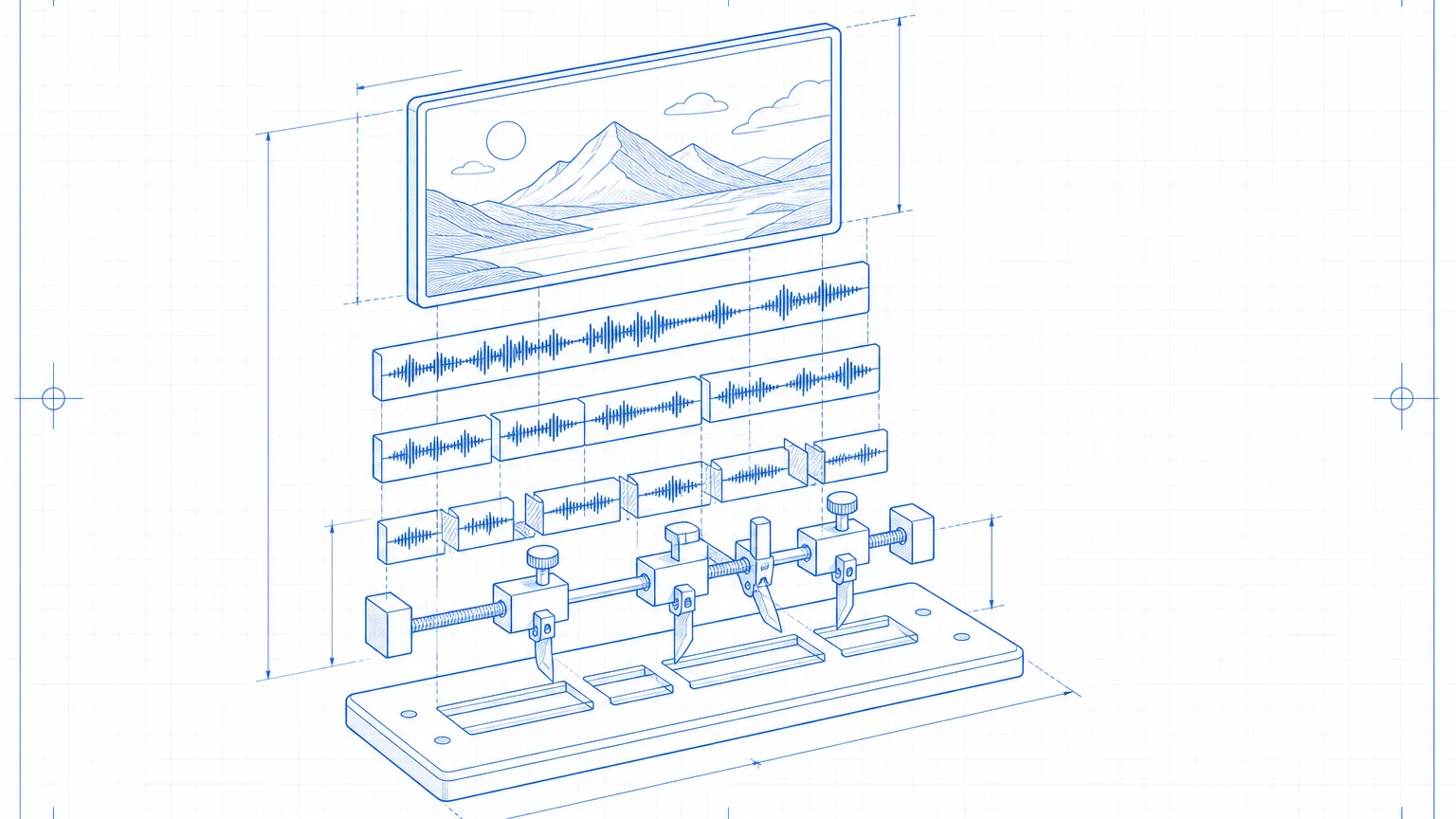
Descript creates a transcript, which is the written version of everything said in the recording. Its central trick is that the words and footage stay connected. Delete a sentence from the text and the matching section disappears from the video. Descript's official editing guide confirms that copying or moving transcript text also moves the underlying media.
This approach is valuable when speech determines the edit. Think customer education, founder updates, recorded sales answers, screen demonstrations, and webinars. For a wider view of the category, compare the workflow with the AI avatar video tool guide and the editor-first route in HeyGen alternatives.
Stack
You need Descript, a desktop computer, headphones, and one source video. Descript is the editor. Headphones matter because a cut that looks clean can still sound clipped.
Start with the Free plan for the test. It accepts one hour of imported or recorded media each month and exports video at 720p, which describes the picture resolution. The finished file carries a watermark. Paid plans remove that mark and raise the usage limits. Pricing checked August 5, 2026 on the official Descript plan page.
| Plan | Monthly price | Annual-billing rate | Imported media per month | Local video export |
|---|---|---|---|---|
| Free | $0 | $0 | 1 hour | 720p |
| Hobbyist | $24 | $16 a month | 10 hours | 1080p |
| Creator | $35 | $24 a month | 30 hours | 4K |
| Business | $65 | $50 a month | 40 hours | 4K |
These prices are per editor, meaning each person who can change a project may add to the bill. The full Descript pricing breakdown covers allowances and extra usage in more detail.
Run the 45-minute edit test
1. Import and check the transcript
Open Descript and select New project, then Video project. Drag your source file into the project. Wait while Descript turns the speech into text.
Play the first minute while reading along. Correct names, product terms, and prices in the transcript before editing. A correction changes the written record. Deleting text removes media, so do not treat those two actions as the same thing.
2. Make the main cut in the script
Highlight one false start and press Delete. Remove a long pause the same way. Then move one complete sentence by cutting and pasting its text.
Play across every join. Listen for half-words and sudden changes in room tone, which is the quiet background sound captured by the microphone. Watch for a person's head or hands jumping between positions. The written edit can look perfect while the video feels broken.
Use the timeline at the bottom when a cut needs finer control. The timeline is the strip that shows when every piece of video and audio begins and ends. Drag the edge of a clip by a small amount, then replay the join.
3. Clean the recorded voice
Select the script layer. Open Properties in the right sidebar. Under Audio Effects, switch on Studio Sound. This computer-assisted effect reduces noise and echo. Descript says it applies at the file level, so every use of that source file changes across the project. The exact control path is documented in its Studio Sound instructions.
Start with a low effect strength. Compare the same ten seconds with the effect on and off. Strong processing can make a normal voice sound thin or metallic. Keep the quieter version if cleanup starts changing the speaker's character.
4. Add captions and a visual change
Open Captions in the right sidebar. Choose whether the style applies to the current scene or all scenes, then select a caption style. Captions are the words displayed on the video as someone speaks. Change the font and colors to match your business.
Add a new scene where the subject changes. A scene is a section with its own visual layout. Place a product image or screen recording in that scene, then resize it in the preview window. Keep essential text away from the edges because social platforms often cover those areas with buttons.
Descript links captions to the transcript, so later word changes update the displayed copy. Its caption guide explains the sidebar controls and separate speaker styles.
5. Create one short excerpt
Open AI Tools in the right sidebar. Scroll to Repurpose, then choose Create clips. Ask for one clip between 20 and 40 seconds. Pick a vertical 9:16 layout, the tall shape used for short social video. Add a plain instruction such as “Choose the section that explains the cost and includes the full reason.”
Descript places the result in a new folder and makes it a separate composition, which is its name for an editable finished sequence. Its Create clips instructions allow one to 20 clips from ten seconds to five minutes.
Do not accept the chosen excerpt because the software labels it engaging. Check that the opening makes sense without the full video and that no qualifying sentence was removed. A confident fragment can reverse the meaning of the source.
6. Export and score the result
Play both compositions from beginning to end. Then select Publish and Export. Choose MP4, the common video-file format, and the highest resolution your plan permits.
Score the test on four questions:
- Did transcript editing remove the need to hunt through footage?
- Did every automated cut sound natural through headphones?
- Could you match your normal caption and visual style without workarounds?
- Would the monthly source footage fit your plan's media allowance?
If you answer yes to the first three and your usage fits, Descript can shorten the path from recording to publishable video. If visual repair consumed most of the 45 minutes, its headline advantage does not match your footage.
The part that breaks
The transcript encourages you to edit with your eyes. Video must be checked with your ears too.
A deleted word can remove the breath that made the next sentence sound natural. Cutting between two moments can make the speaker jump across the frame. Studio Sound may clean the first clip more heavily than the second. Automatic captions can miss a company name even when the spoken edit is fine.
After every transcript edit, replay two seconds before and after the cut. At final review, watch once with sound and once muted. The muted pass exposes visual jumps; the headphone pass catches clipped speech and changing background noise.
AI credits are the other constraint. These are internal units spent on computer-assisted jobs such as sound cleanup and clip generation. A plan can include enough imported footage while running short of credits. Measure one normal video before choosing a tier. The Descript pricing guide shows how those two limits interact.
Copy this review checklist
Paste this into the project notes and complete it before export:
TRANSCRIPT
[ ] Names, prices, and product terms match the source
[ ] Deleted sections do not change the speaker's meaning

AUDIO
[ ] Every cut was replayed with headphones
[ ] Studio Sound improves the voice without making it metallic
[ ] Music never covers instructions or prices

VIDEO
[ ] Visual jumps were repaired or covered with useful footage
[ ] Captions stay inside the safe area
[ ] The vertical clip makes sense without the full recording

FINAL
[ ] Claims and on-screen numbers were checked
[ ] Full export was watched after rendering
[ ] Source footage and consent records are stored
Who should use Descript
Use it when one person records and edits speech-led material, or when a small team needs a common way to review spoken content. The document-style workflow lowers the first learning barrier. It also keeps transcript corrections, captions, sound cleanup, and clips inside one project.
Avoid it when the work is mainly product animation, music-led montage, color-sensitive footage, or exact commercial timing. A conventional editor gives you more direct control over frames, effects, and detailed sound mixing. Descript has a timeline, but text remains its strongest reason to be there.
The plan choice follows the footage. Hobbyist covers up to ten imported hours each month and exports at 1080p, the usual high-definition format. Creator raises imported media to 30 hours and exports at 4K. Business only earns its higher price when several editors, brand controls, or heavier monthly limits solve a documented bottleneck.
Your move
Import one imperfect three-minute recording and run the six-step test before moving a production workflow. Time the edit, count the repairs, and choose from evidence rather than the feature list.
Upgrade path
First, save a reusable layout with your logo, fonts, caption position, opening card, and closing card. Duplicate that project for each new recording. Consistency saves more time than generating fresh design choices every week.
Next, create a short recording checklist for microphone distance, room noise, camera position, and screen resolution. Cleaner source footage reduces the amount of computer-assisted repair and protects your credit allowance.
Finally, separate specialized jobs when quality demands it. A dedicated voice system may suit narration better; the natural AI voiceover settings guide shows that workflow. Keep Descript as the speech-led editor only if the 45-minute test proves it removes work from your actual process.
The verdict
4.1/5Descript is a capable editor for spoken marketing video because text controls the main cut and captions follow it. The 4.1 rating reflects real time saved on interviews, demonstrations, and webinar clips, balanced against rough automated joins, usage limits, and weaker control for animation-heavy work. Run the test before paying for several editor seats.
Get the next build from the AI voice and video runbooks.
Frequently asked questions
Is Descript good for marketing video editing?
Yes, when your videos are driven by speech, such as interviews, product demonstrations, webinars, and talking-head clips. It is less suitable for animation-heavy work.
Can a beginner edit video in Descript?
A beginner can make the main cuts by deleting words from a transcript. Visual layers, scene timing, and detailed audio repairs still take practice.
What is the biggest limitation of Descript?
Text editing can hide rough cuts, clipped words, and awkward visual jumps. Every automated edit still needs a full playback before export.
Which Descript plan fits a small business?
Hobbyist fits light monthly production. Creator makes more sense when you regularly import long recordings, need 4K exports, or consume more AI editing credits.
About Runbook
AI tools and automation builds for marketers. What to use, how to wire it, and the workflow to copy this week. How we work
GET THE NEXT DISPATCH
Run the next build before your competitors read about it.
One short email when an AI tool or automation actually changes the work, with the build to copy.
No send unless there is a build worth running.
// keep_reading
Related builds
Descript pricing 2026: what creators actually pay
Descript pricing for creators starts at $16 monthly on annual billing. Compare minutes, AI credits, seats, and the bill for a real video workflow.
HeyGen alternatives for AI video in 2026
HeyGen alternatives compared for training, edited footage, and avatar videos. Use this 60-minute test to choose Synthesia or Descript.
HeyGen vs Synthesia: which AI avatar video tool?
HeyGen vs Synthesia compared for presenter quality, training workflows, translation, and cost, with a 45-minute test you can run.