AI content approval workflow: verify before publishing
Build an AI content approval workflow that checks facts, rights, brand language, and file origin before copy or media reaches customers.
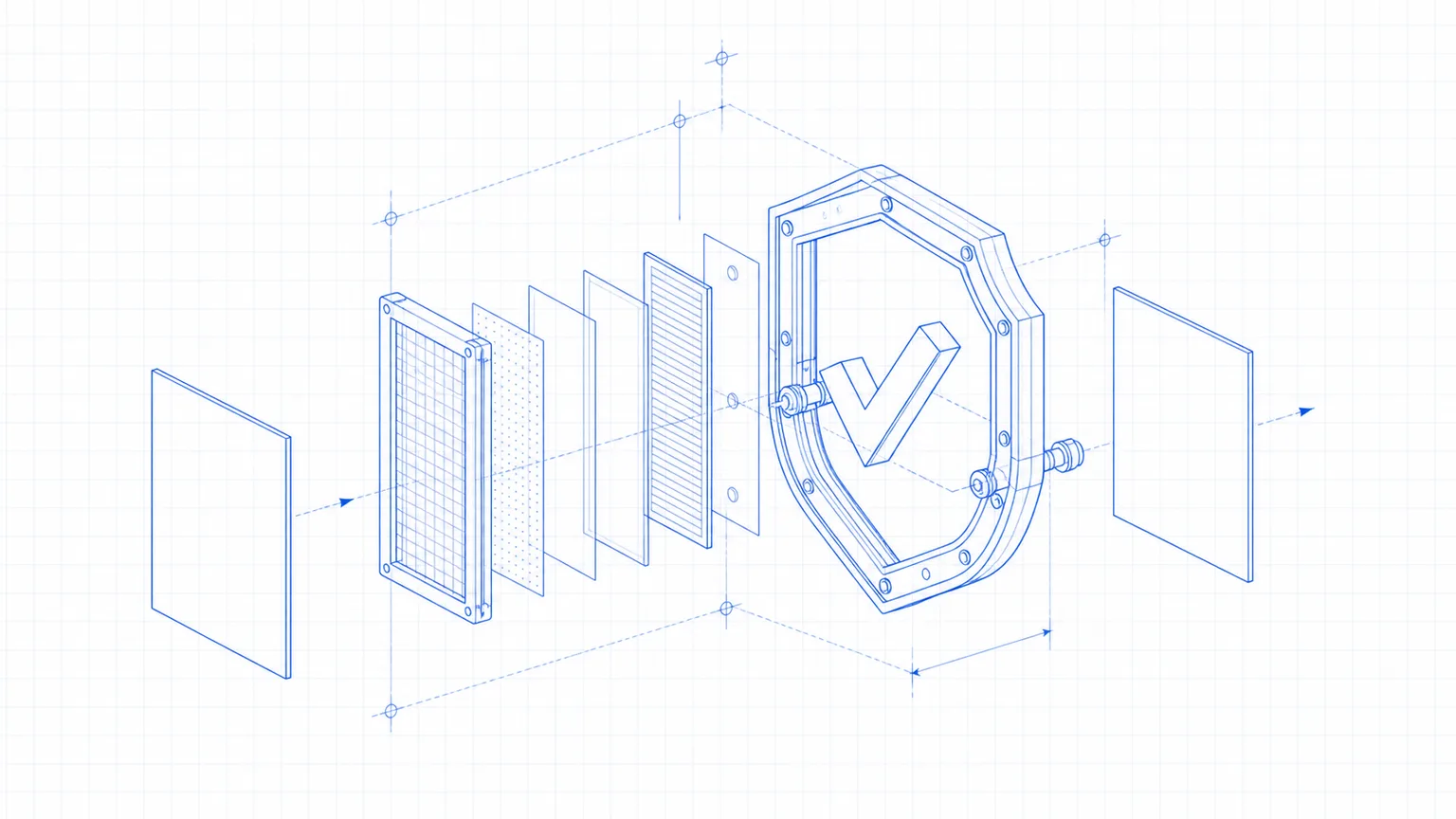
This sheet contains partner links. A purchase through one earns Runbook a commission at no additional cost to you. How we make money.
One unchecked AI claim can turn a quick draft into a customer complaint. In about 90 minutes, you'll build an AI content approval workflow using a shared spreadsheet, file folders, and the verification tools from OpenAI, Claude, and Google. Every draft will have a source, a named reviewer, and a locked route to publication.
What you'll build
You'll create one narrow gate between creation and publishing. AI may draft words, images, or audio. It may not send an email, update a website, or post to a social account until a person changes the item's status to Approved.
The workflow answers five questions before customers see anything:
| Check | What the reviewer proves | Business risk it controls |
|---|---|---|
| Source | Claims match an opened source | False promises and stale prices |
| Rights | The team may use the text, image, voice, and logo | Ownership and consent disputes |
| Brand | Names, offer terms, and tone match your approved material | Confusing customer messages |
| Origin | Available file credentials or watermarks were checked | Undisclosed or misidentified media |
| Release | One named person approved the final version | Accidental publishing |
Origin needs a plain explanation. Content Credentials, also called C2PA, are signed notes stored inside a file that describe where it came from or what edited it. A watermark is a hidden signal placed in the words, picture, or audio itself. Neither tells you whether a claim is true or whether you own the material.
That limit matters. OpenAI says its provenance signals can be lost through uploads, file conversions, resizing, or screenshots. Claude says a detected mark shows that Claude may have processed an item, not who wrote it or who owns it. Treat the signal as one line in the review, never the approval decision.
This build pairs well with a controlled prompt library. If your drafting process is still loose, set up the six prompt systems for marketing metrics first, then bring their output through this gate.
Stack
Use tools your team already understands:
- A shared spreadsheet in Google Sheets or similar software. This becomes the approval register, meaning the single list showing what is waiting, approved, or rejected.
- A shared drive with three folders: Draft, Approved, and Published.
- Your current AI assistant, such as ChatGPT, Claude, or Gemini.
- The provider's own verification page when the file type is supported.
- Your website, email, or social publishing tool, accessible only after approval.
You do not need an automation for version one. A manual gate is easier to inspect and harder to misunderstand. Once it works for two weeks, connect it to the kind of controlled handoff used in this automated weekly report build.
Steps
1. Create the approval register
Open a blank shared spreadsheet. Name it AI Content Approval Register. Add these columns across the first row:
| Column | What goes in it |
|---|---|
| Item ID | A unique label such as 2026-08-16-01 |
| Owner | Person responsible for the draft |
| Channel | Website, email, social, ad, or sales document |
| Draft file | Link to the exact file under review |
| AI used | ChatGPT, Claude, Gemini, or None |
| Sources | Links that support every factual claim |
| Rights checked | Yes or No |
| Origin checked | Result and tool used |
| Reviewer | The one person who can approve it |
| Status | Draft, Needs changes, Approved, or Published |
| Approved at | Date and time of approval |
| Published URL | Final location customers can see |
Freeze the top row so the headings stay visible. Turn on a drop-down list for Status. Do not allow free-typed labels such as “looks fine” or “almost ready.” Those phrases create a side door around approval.
2. Separate drafts from publishable files
Create three folders in the same shared drive: 01 Draft, 02 Approved, and 03 Published. Give writers editing access to Draft. Give the reviewer editing access to all three. Anyone who operates the website or email system should pull files only from Approved.
Name every file with its Item ID first. For example, use 2026-08-16-01-summer-service-email.docx. This keeps the spreadsheet row attached to the right version when several drafts have nearly identical names.
Do not overwrite a reviewed file. Add v2, v3, and so on. The reviewer approves one exact version, not the general idea.
3. Make the AI disclose its inputs
Before asking for a draft, give the AI only approved source material: the current price sheet, offer terms, product details, and the page or document being updated. Tell it to mark any missing fact instead of filling the gap.
Paste this instruction above every customer-facing request:
Use only the source material below. Do not add prices, dates, guarantees,
customer quotes, performance claims, or product details that are absent.
Write [SOURCE NEEDED] wherever a required fact is missing.

At the end, list:
1. Every factual claim in the draft.
2. The source line that supports each claim.
3. Any wording that needs a human decision.
This is a drafting control, not a fact check. The reviewer still opens each source. For a broader way to keep AI tied to approved numbers, use the source-of-truth pattern in the weekly marketing report workflow.
4. Check the claims and the destination
Open the draft beside the source links. Check every price, date, address, product name, guarantee, testimonial, and comparison. Click every link. Then inspect the destination page or message preview, because a correct draft can still point customers to an expired form or the wrong booking page.
Read the content once as a customer. Ask a blunt question: could a reasonable buyer understand this as a promise? If yes, make sure the business can honor it exactly as written.
For search content, also check whether the answer remains useful when an AI summary appears above it. The Google AI Overviews content build shows how to focus pages on decisions and next steps instead of repeating basic explanations.
5. Check rights and consent
Mark Rights checked: Yes only after you can answer where every asset came from and why you may use it. Keep the license, written permission, release, or original source beside the draft.
Voice needs special care. Do not clone or imitate a person's voice without the owner's permission. Images of real people need the same caution, particularly when an AI tool changed the scene or expression. A hidden watermark does not replace consent.
If the asset has no clear source record, replace it. Do not ask the reviewer to guess.
6. Inspect available origin signals
For supported OpenAI images or audio, upload the final file to OpenAI's verification tool. In its July 31, 2026 update, OpenAI said supported audio joined images in carrying provenance signals, and it added access for businesses to connect verification to a workflow. Record the result in Origin checked.
For supported Google-made images, video, or audio, open Gemini and ask whether the file was made with AI. Google's May 19 announcement says Gemini checks its SynthID watermark, an invisible signal inside supported media. Google also began adding Content Credentials checks to Gemini.
Claude's marking guidance says Claude models launched on or after August 2, 2026 support marking at launch. Text can carry an embedded watermark, while supported PNG, JPG, and SVG files can carry signed origin information. Detection may still be uncertain, especially after editing or with short text.
Write the exact outcome: OpenAI Verify: no supported signal detected, not Not AI. An empty result proves only that the tool found no signal it supports.
Your move
7. Approve one version and record the release
The reviewer changes Status to Approved, enters the approval time, and moves that exact file into 02 Approved. The publisher checks the Item ID and version before copying anything.
After release, add the live URL or campaign reference and change the status to Published. Move the released file into 03 Published. You now have a simple record of what customers saw, who checked it, and which sources supported it.
The part that breaks
The dangerous failure is approving a document and then publishing a later edit. A harmless wording change can introduce a wrong price, a broken link, or an unsupported promise after the reviewer has finished.
Lock the version at approval. If anyone edits it, move the file back to Draft, change the status to Needs changes, and require another check. No exceptions for “tiny” edits.
Origin checks fail differently. A screenshot may remove Content Credentials. Compression can weaken a watermark. A tool may recognize only its own output. So never let no signal detected become permission to publish. Your source, rights, and human review checks still decide.
Upgrade path
After two weeks without confusion, automate the handoff. Use Make, Zapier, or n8n to watch for a row changing to Approved, then copy the approved file into a publishing queue. An automation is a rule that moves information between tools without someone copying it by hand.
Keep the final publish action manual until the team has handled at least 20 clean approvals. Then add two controls: stop the automation when Reviewer is blank, and send an alert when the draft file changes after approval. The AI automation tool comparison can help you choose the wiring layer, while the core approval rule stays the same.
Your next build is the permission check: list every account that can publish to customers, remove unused access, and route the remaining accounts through this register. Get the next build in /topics/workflows.
Frequently asked questions
What is an AI content approval workflow?
It is a fixed review path that records the source, checks claims and usage rights, assigns a human approver, and keeps unapproved AI output away from publishing tools.
Can an AI detector prove that content was made by AI?
No. Detection and provenance tools provide useful signals, but edits, screenshots, compression, unsupported formats, and different AI providers can all produce an uncertain or empty result.
Who should approve AI-generated marketing content?
Assign one named owner who understands the offer and can verify claims, permissions, prices, links, and customer-facing language before the item moves to the publishing queue.
How long does an AI content approval workflow take to set up?
Allow about 90 minutes for the tracker, folders, checklist, test items, and publishing permissions. A normal item should then take five to fifteen minutes to review.
About Runbook
AI tools and automation builds for marketers. What to use, how to wire it, and the workflow to copy this week. How we work
GET THE NEXT DISPATCH
Run the next build before your competitors read about it.
One short email when an AI tool or automation actually changes the work, with the build to copy.
No send unless there is a build worth running.
// keep_reading
Related builds
Automate a weekly marketing report with AI
Automate a weekly marketing report with AI, Zapier, Google Analytics, and Gmail while keeping the final numbers under human review.
n8n AI agent setup: build a guarded lead qualifier
Follow this n8n AI agent setup to qualify inquiries against an approved service sheet, draft replies, and keep customer contact under human control.

GPT-6 gets cheaper, Claude Opus 5.5 lands: Sept. 23
GPT-6 cuts model costs, Claude Opus 5.5 lowers prices, and WordPress needs a security update. Make these four stack moves today.